A DISTRACTORY ORIGINAL
Fidget Wall: how to play
Pop a bubble, flick a spinner or pull a zipper. Fidget Wall puts 15 familiar desk toys on one wall, with moving parts and sounds that respond as you play.
Made and explained by Distractory · Updated
Play Fidget WallFree · No account or download · Computer and phone · Sound optional
What is Fidget Wall?
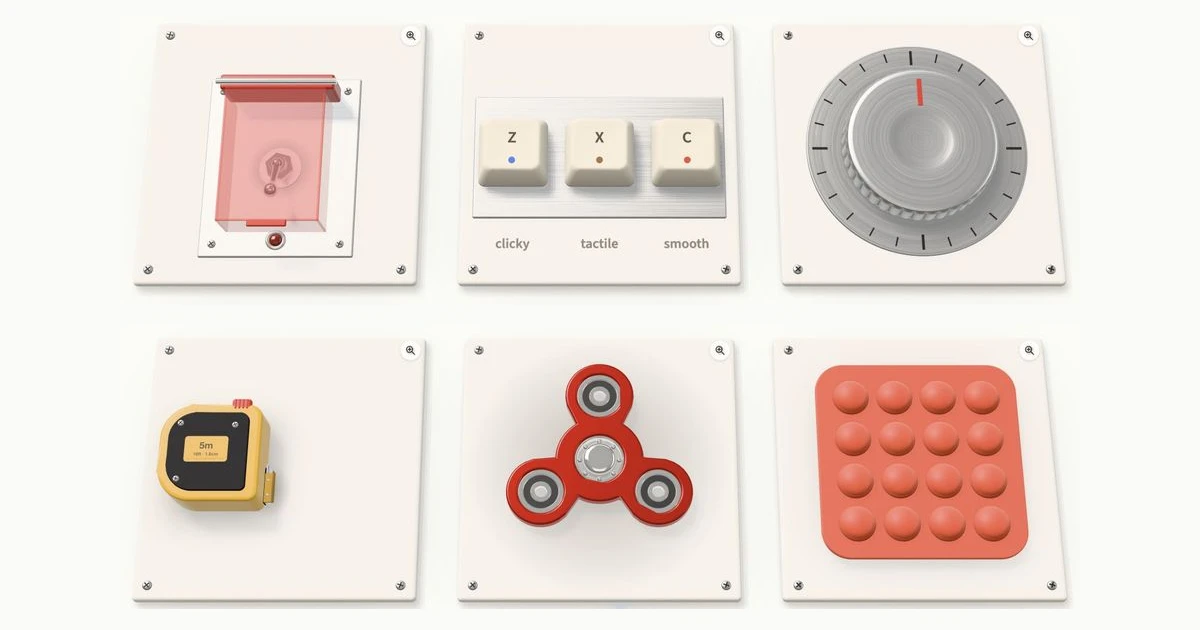
Fidget Wall is a free browser toy made by Distractory. Its wall holds 15 objects to click, turn, pull and pop, including a safety switch, bubble wrap, a click pen and an abacus.
Each toy has its own movement and sound. Try a slow turn of the dial, a quick flick of the spinner or a row of pops, then move on whenever another toy catches your eye.
How to try your first toy
Choose something on the wall
Scroll down to see the toys. On a phone, swipe up or down to browse. The short instruction beside each toy tells you where to start.
Bring it up close
Select the magnifier beside a toy for a closer view. This gives your finger more room to drag its moving parts. You can also play directly on the wall.
Click, tap or drag
Try pressing a pop-it bubble or flicking the spinner. Use the arrows in close-up to move between toys, or choose “Back to the wall” to browse again.
The speaker button turns the sounds on or off. The toys work with sound muted, too.
Can you play on a phone or with a keyboard?
On a phone or tablet, tap and drag with your finger. Vertical swipes browse the wall, so open a toy in close-up when you want to drag straight up or down, such as pulling the zipper. On a computer, use a mouse or trackpad to click and drag.
Press Z, X and C to play the three keyboard keys. The other toys use mouse or touch controls for their moving parts.
Use Tab to reach the page controls and Enter to activate them. In close-up, ← and → move between toys, and Escape returns to the wall. With the wall focused, ↑, ↓, Page Up and Page Down scroll; Home and End jump to either end.
Some phones also give a small vibration as you play. This depends on the device, browser and its settings; the toys work without vibration.
How do all 15 toys work?
- Toggle switch
- Lift the red safety cover, then flick the switch. Its lamp lights when the switch is on.
- Keys
- Press the three keys with a mouse or finger, or use Z, X and C. Each has a different switch feel and sound.
- Dial
- Drag around the dial to turn it through its notches.
- Tape measure
- Pull the hook across the screen. Release it to let the tape retract, or click the lock to hold it out. Click the lock again to release it.
- Spinner
- Flick the spinner and let go to keep it turning.
- Pop-it
- Press the bubbles through. Tap the sheet’s edge to flip it and pop from the other side.
- Click pen
- Click the end to extend or retract the nib, or flick the barrel to spin the pen.
- Zipper
- Drag the tab along the teeth to open and close the zipper.
- Magnets
- Pull a ball away from the others, then let go and watch it snap back.
- Gears
- Turn the crank or drag a gear to move the connected gears. The small pawl clicks over the teeth.
- Velcro
- Pull the red tab to peel the strip back. Drag it in the other direction to close it again.
- Newton’s cradle
- Pull an end ball out to the side, then release it to set the balls moving.
- Tally counter
- Press the counter to add one. Click or tap the little reset wheel to return the count to zero.
- Abacus
- Slide the beads along their rods, or drag the frame to tilt it and let the beads run to one side.
- Bubble wrap
- Pop individual bubbles or drag across a row. Pull the sheet along to reveal more bubbles.
Do you need an account, and what gets saved?
No account, registration or sign-in is required. Fidget Wall runs directly in your browser.
Your sound preference is saved in that browser when storage is available. The toy positions, popped bubbles and tally count are not saved between page loads. Reloading the wall starts the toys fresh.
The sound setting does not sync between devices. Clearing site data or ending a private browsing session can remove it. See the privacy page for more about how Distractory handles data.
What if a toy does not respond?
- The wall scrolls when a toy is dragged on a phone.
- Open that toy with its magnifier, then try the movement in close-up. Vertical swipes on the wall are used for browsing.
- There is no sound.
- Check the speaker button and your device volume. Click or tap a toy once to let the browser start its audio.
- The page says it needs 3D graphics.
- Fidget Wall needs JavaScript and WebGL. Try an up-to-date browser with graphics acceleration available. If graphics are disabled or unsupported on that device, the wall cannot render.
- The tape stays extended.
- Click or tap its lock to release it.
- The tally counter needs resetting.
- Click or tap the small wheel beside the counter. To reset all the toys, reload the page.
- The phone does not vibrate.
- Vibration support varies between browsers and devices. It is optional and does not affect the controls.
What other games and web toys might you like?
Rubber Duck Machine
Load a yellow lump, pull the lever and stamp a numbered rubber duck. Each successful stamp adds to a shared worldwide total. The Rubber Duck Machine guide explains the controls and counter.
Firewood
Click to split a log on a chopping stump, then drag to look around. Another small browser toy built around a repeatable physical action.
Find the toys made by Distractory in Made here.