A DISTRACTORY ORIGINAL
Popcorn: how to play
Drop a kernel. Wait for the pop. Make a handful, push it around, then tip the lot away. Popcorn is a little browser toy for making a mess you never have to pick up.
Made and explained by Distractory · Updated
Pop some popcornFree · No account or download · Computer and phone · Best with sound on
How to pop your first handful
Click or tap the red surface
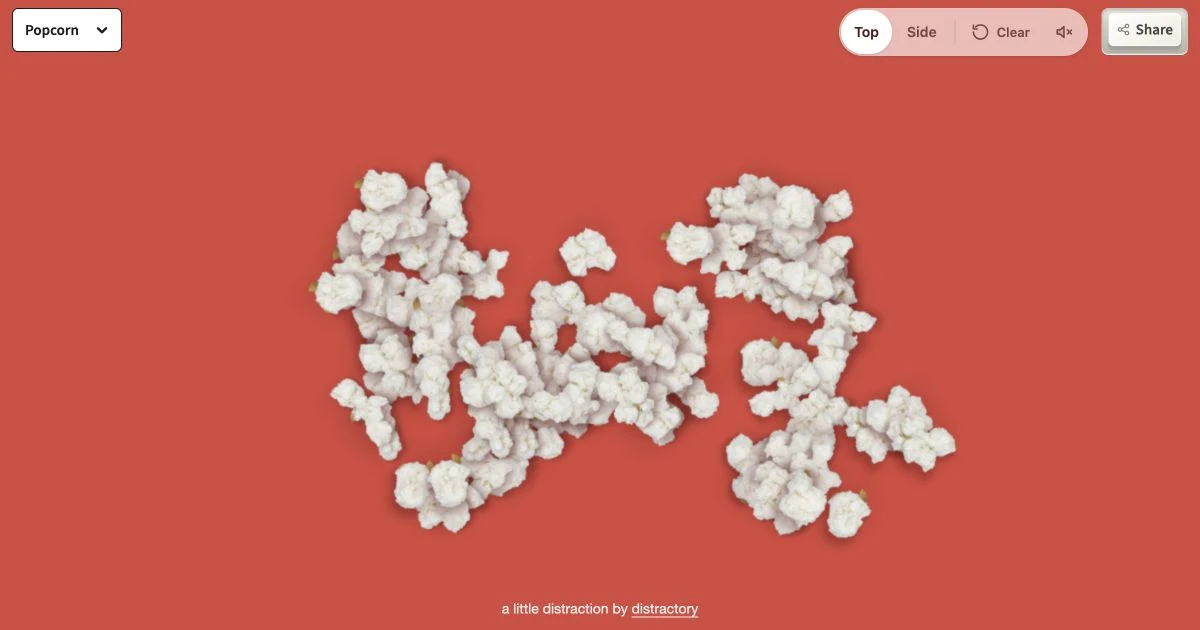
A kernel drops where you point. Give it a moment: it twitches, pops and lands as a piece of popcorn.
Hold for more
Keep the mouse button or your finger down to keep dropping kernels. Move while holding to spread them around. Let go to stop.
Play with the pile
On a computer, move your pointer through the popcorn without holding a button to nudge it around. Try Side to watch it fall and pile up. When you want an empty surface, press Clear—the curved-arrow button.
There is no score to chase or sequence to finish. One kernel is enough; a screenful is fine too.
What is Popcorn?
Popcorn is a free online popcorn game made by Distractory. Click or tap to drop kernels, watch them pop, and play with the pieces. The shapes, tiny bounces and different sounds make it a satisfying physics toy to fiddle with for a minute or two.
There are no levels, upgrades, timers or shared totals. Your popcorn belongs to the scene in your browser. You can play quietly, fill the surface, or enjoy the sound of a single kernel popping.
What is the difference between Top and Side?
Top looks down on the surface. Kernels pop where you drop them, and the popcorn spreads, turns and slides when you move your mouse through it.
Side looks across the scene. Kernels fall, pop and build a pile along the bottom. Pieces bump into each other, settle and tumble when you tip or shake the scene.
Use the Top and Side buttons to switch. Each view keeps its own pile while the page stays open; switching pauses the view you leave. It is not a second camera pointed at the same pile. Clear empties the view you are using.
How do mouse, phone and keyboard controls work?
On a computer
- Click: drop a kernel. Hold the left mouse button to keep dropping them.
- Move without pressing: push or poke pieces of popcorn with the pointer.
- In Side view, hold the right mouse button and move left and right: shake and tip the pile. A stronger movement can send popcorn out of the scene.
A trackpad works for dropping kernels and moving the pointer. Shaking is easier with a mouse that lets you hold the right button while moving.
On a phone or tablet
Tap to drop a kernel, or hold your finger down for a stream. Moving your finger while holding spreads the kernels. The mouse-hover pushing action does not have a direct touch equivalent.
In Side view, supported phones can use physical tilting and gentle shaking to move the popcorn. On iPhone and iPad, a motion-permission prompt may appear after you have popped some kernels and tap again. Allow it if you want motion controls. If motion is unavailable or you decline, tapping, holding, switching views and Clear still work.
With a keyboard
Use Tab to focus the game surface, then press Enter or Space to drop a kernel. You can also tab to Top, Side, Clear, sound, Share and the game dropdown and activate them with the keyboard. Pointer pushing and motion-based tipping need a mouse or a supported phone.
On smaller screens, Clear and Share appear as icons. The curved arrow clears the popcorn, the speaker controls sound, and the connected-dots icon opens sharing. On the narrowest screens, the toolbar uses two compact rows.
What do Clear and the sound button do?
Clear empties the current view with an animation. In Top view, the popcorn slides off to one side. In Side view, the floor opens and the pile pours out below. Give the animation a moment, then start again. The button is inactive when that view is empty.
The speaker turns the game sounds on or off. Dropping, popping and settling each have their own sounds. Your first click or tap allows the browser to start audio; the game is fully playable with sound off.
Do you need an account, and what gets saved?
No account, registration or download is needed. The game remembers your sound preference and last selected view in this browser on this device, when browser storage is available.
The piles last while this page stays open. Reloading the page or returning later starts fresh. Preferences do not sync to another browser or device, and clearing site data can remove them. There is no public flight log, production counter or leaderboard for Popcorn.
Your visit-counting choice is also saved in this browser when storage is available. You can read about it and change it on the privacy and visit counting page. Changing that choice reloads the page.
What if something does not work?
- There is no sound.
- Click or tap the game, check the speaker button and your device volume, and make sure the browser tab is not muted. Sound can also be restricted by your browser or device settings.
- Tilting my phone does nothing.
- Use Side view. Motion controls depend on your browser and device. On iPhone or iPad, play for a little while and tap again to give the permission prompt a chance to appear. If permission was refused, check your browser’s site settings. You can always use Clear to tip the popcorn away.
- The popcorn seems different when I switch views.
- Top and Side have separate piles. Switch back to return to the one you left. Reloading empties both.
- Clear is greyed out.
- That view is already empty. Add a few kernels first. If you have just cleared a full pile, let the animation finish.
- A very full scene gets slow.
- Release your finger or mouse button and use Clear. A large moving pile asks more of your device than a few pieces. The game limits how much it keeps active, but performance still varies between phones and browsers.
- I cannot copy or share the link.
- Use the manual-copy box if it appears, or copy the address from your browser. You can close the sharing panel with its cross or Escape.
More small distractions
Fidget Wall
For more clicks and pops: fifteen desk toys, including bubble wrap, a spinner and a pop-it sheet. The Fidget Wall guide explains what each one does.
Rubber Duck Machine
Swap a handful of popcorn for a little making ritual. Load the yellow lump, pull the lever and stamp a numbered duck. See the Rubber Duck Machine guide for the controls and shared counter.
Paper Plane Launcher
Fold a plane and send it out over the town. The Paper Plane Launcher guide covers aiming, wind, designs and the flight log.
Find all our own toys on Made here, or explore more browser distractions.