A DISTRACTORY ORIGINAL
Paper Plane Launcher: how to play
Pull a lever, fold a plane and send it out over the rooftops. Try to clear the duck pond, beat your best or add a few more metres to everyone’s total.
Made and explained by Distractory · Updated
Play Paper Plane Launcher →Free · No account or download · Computer and phone · Best with sound on
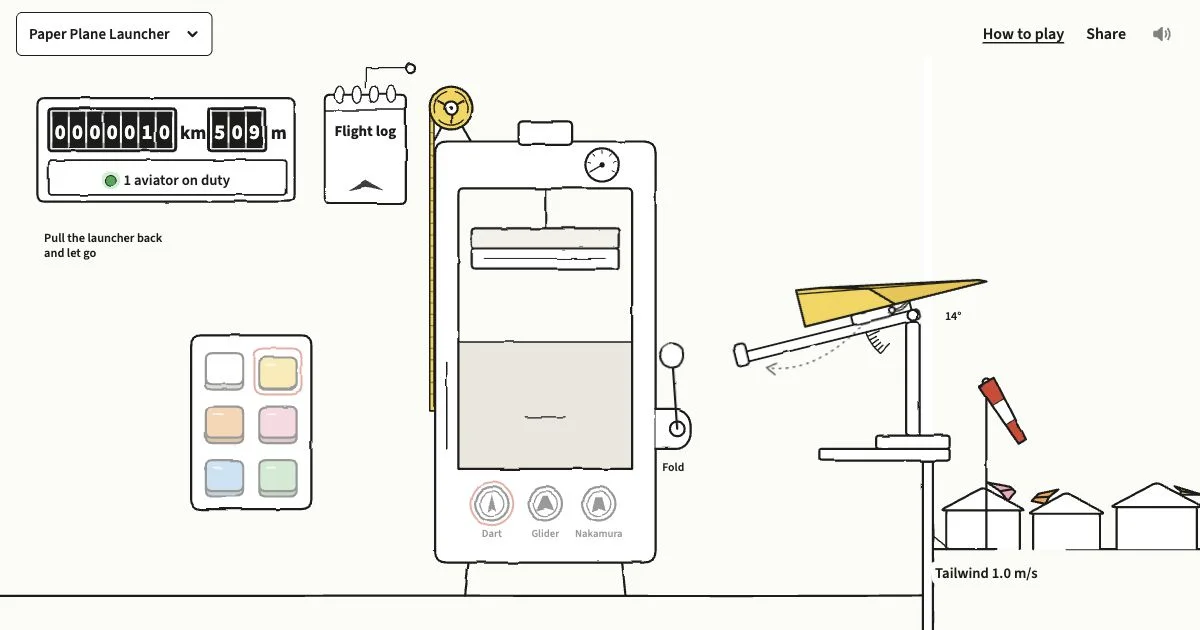
How to launch your first plane
Fold your plane
Start with the yellow Dart, or choose another colour and design. Pull the round lever handle all the way down, then let go. The machine folds and loads the plane. A click or a half-pull won’t do it.
Pull back and aim
When the plane is on the launcher, drag the arm or plane back. Move it up or down to change the launch angle. A longer pull gives a stronger launch.
Let go and watch
Let go to launch. The view opens out over the town and follows your plane to its landing. The result card shows the distance and any stall or flutter. Choose “Fly again” for the next one.
To share that flight, use the row underneath: Copy link, WhatsApp, Facebook and X are there at once, and More has Reddit, Bluesky, Threads, Email and your device’s own share menu when available. Facebook shares the game; the others include a line about your flight. “Challenge a friend” gives you a link with your distance, and whoever opens it sees a blue flag to beat. The Share button at the top of the page shares the game itself.
The welcome plane is just showing you the way out. It is not counted in your history or the shared total.
What is Paper Plane Launcher?
Paper Plane Launcher is a free paper airplane game made by Distractory. Work the folding machine, then launch your plane from a high window. Below it are rooftops, trees and a duck pond. Beyond them is the sea.
This paper plane simulator gives you three designs and a wind that changes every minute. Try a low, hard throw or a gentle glide. There is no timer or required target: make one flight, or keep going until you beat your best.
Can you play on a phone or with a keyboard?
On a computer, click and drag with a mouse or trackpad. On a phone, use your finger. Tap “Paper & design” to pick a colour and design, then choose “Done”. You can also close the panel by tapping outside it or pressing Escape. The view moves towards the launcher when your plane is ready.
Scroll down for the introduction and links below the game. On a phone, swipe an empty part of the scene.
With a keyboard, use Tab to reach paper, design and lever controls, then Enter or Space to select them. Once the launcher is focused, ↑ and ↓ set its angle, ← pulls it back, and → eases it forward. Press ← at least twice, then Enter or Space to launch.
The speaker button turns sound on or off. “How to play” opens this guide in a new tab. On very narrow phones, use the guide link in the introduction below the game. “Share” at the top of the page uses your device’s sharing menu when available, or lets you copy the page link. Open the clipboard for the flight log; Escape closes it.
How do the designs, pull and wind affect a flight?
- Dart
- A narrow plane. Try a strong, low launch.
- Glider
- A wide-winged plane. Try a gentle or medium pull: throwing it too hard can make its wings flutter and shorten the flight.
- Nakamura Lock
- A folded design with a locking flap. Compare it with the other planes when the wind changes.
Want to fold one away from the screen? Follow the step-by-step paper plane folding guide for Dart, Glider and Nakamura Lock, with A4 and US Letter measurements.
All six paper colours fly the same way. Watch the windsock and its label: the wind changes each minute. A tailwind helps carry your plane along; a headwind changes its airspeed and range. If a hard throw falls short, try easing off.
A roof might give you a slide. A tree might keep your plane. Pond landings rest on the bank in later rounds. Tap a resting plane to see its design, distance and country when available. These flights start from a high window; the distances are not real-world throwing records.
What do the counter and flight log show?
Your flights join everyone else’s. Each accepted flight adds one to the shared flight count and its distance to “Flown by everyone”. The wall counter shows that distance in kilometres and metres. “Aviators on duty” estimates how many game pages are open, not how many different people are playing.
Click or tap the hanging clipboard marked “Flight log”. Its number is your own plane count on this device. Inside the log you can see:
- Today on the hill
- A small map marks recent shared landings, your longest flight with a red triangle, today’s shared record and a yellow flag for the longest ever. It shows recent landings rather than a permanent dot for every flight ever made. The yellow record flag also appears in the town.
- Longest ever
- The longest accepted flight since the shared counter began, with its plane design, country and UTC date when available.
- Longest today
- Today’s best accepted flight, with its plane design and country when available.
- Your longest
- Your personal best distance, with your plane count on this browser and device underneath. These can include flights that have not been accepted into the shared total.
- Flown by everyone
- The all-time shared distance. As it grows, the log compares it with familiar journeys and milestones. “Next” shows the next milestone and how many kilometres are left to go.
- Planes flown
- The total number of accepted flights from everyone since the shared counter began, with today’s count underneath. The server uses a UTC day for daily counts and records, so these may reset at a different time from your local midnight.
- Longest by design
- Today’s shared best and your own best on this device for Dart, Glider and Nakamura Lock. Older personal records are recovered from the recent flights still saved in your browser, so some earlier design records may be missing.
- By country
- Choose “Furthest today” for each country’s best flight today, or “Distance, all time” for its combined distance. The arrow buttons show more countries when needed. Country comes from approximate connection information; a VPN or network route can affect it.
Choose “Close” or press Escape to return. The figures refresh periodically rather than instantly for every viewer. The flight log is separate from website visit analytics: a flight, a page visit and an aviator on duty are different measurements.
Do you need an account, and what gets saved?
No account or sign-in is needed. Your browser remembers your paper, design, sound preference, flight count, best distance overall and with each design, total distance and recent landings when storage is available.
The shared counter is separate. The server checks a flight and calculates its distance itself. Successful flights are added quietly; the result card only shows a counter message if there is a connection problem or the flight cannot be added. A flight waiting for a connection can be kept locally for a short retry window. It must reach the server within 100 seconds of the start of its launch minute, so the time left depends on when you launched and how long the flight took. It only joins the shared total if the server accepts it. Flights that arrive too late or cannot be accepted still remain personal flights. Reloading during a flight does not finish it or add its distance.
Your personal history stays in this browser and does not sync to another device. Clearing site data or ending a private browsing session can remove it. Flights already added to the shared total stay there. Country information comes from the connection, not a precise location request. Read Privacy and visit counting for the site’s data practices.
Your visit-counting choice is also saved in this browser when storage is available. Counting asks first in the EU, EEA and Switzerland, and when location is unknown. In the UK and other countries you can switch it off on the privacy and visit counting page. Turning it off reloads the page.
What if something does not respond?
- The machine will not fold.
- Pull the lever all the way down before releasing. Clicking it or letting go partway does nothing. With the lever focused, Enter or Space completes the pull.
- The plane will not launch.
- Wait until folding and loading finish, then pull the launcher back far enough before releasing. Paper and design choices become available again after you choose “Fly again”.
- There is no sound.
- Check the speaker button and device volume, then interact with the game to start audio. On an iPhone or iPad, also check Silent mode. The game works muted.
- The result card says “Offline” or “Not added to the counter”.
- You can keep playing locally. Flights waiting for a connection are retried within the short submission window described above. The message clears if a retry succeeds; if it arrives too late or is refused, the card explains why it was not added. A personal result is not proof it reached the shared total.
- The page is blank or unavailable.
- The game needs JavaScript and an up-to-date browser. Reload after checking your connection. The guide and links remain available without the game running.
- The log differs from the distance on my result card.
- Your card shows one flight; the wall counter combines accepted flights from everyone. Personal records and shared figures are separate. The card stays quiet when a flight is counted and shows a message if it cannot be added. Allow time for other open pages to refresh.
- I prefer less movement.
- The game responds to your device’s reduced-motion preference, simplifying decorative movement while keeping the flight playable.
What other distractions might you like?
Popcorn
Pop a handful, push it around and tip the whole lot away. The Popcorn guide covers both views, phone motion controls and the sounds.
Rubber Duck Machine
Load a yellow lump, pull a lever and stamp a numbered duck. See the playing guide.
Fidget Wall
Click, pop, spin and fiddle with 15 desk toys. The guide explains their controls.
Browse all our distractions or discover more playful websites.